USER GUIDE

Getting started with Mikeybox

Build Animal Company inventions in your browser, keep and share them, and bring them into the game. You need a desktop browser or the Quest browser. An account is only needed to save builds online (Discord) and to receive them in the game (your Animal Company account).

Which site do I use?

Mikeybox has an editor and a Workshop for each of two game rooms. Use the pair for the room you play in.

Prime editor

prime.mikeybox.ai

Build and preview inventions. Deliveries arrive in the MIKEYBOX room.

Prime and Fabrication are separate: each has its own Workshop, sign-in and backups. You can still move a workspace from one to the other (see Workspaces).
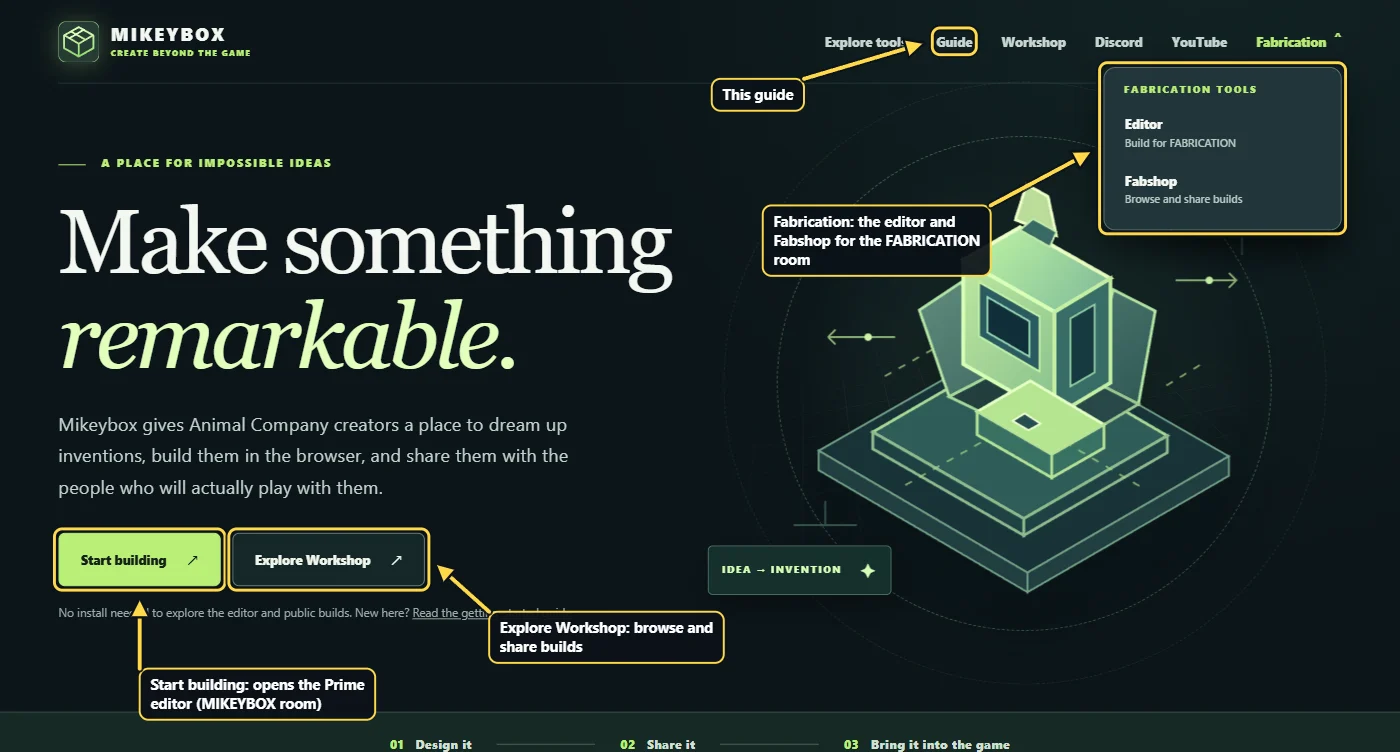
The Mikeybox home page: Start building opens the Prime editor, Explore Workshop opens the Workshop, the Fabrication menu holds the FABRICATION room's editor and Fabshop, and Guide opens this guide.
Everything starts from the home page, www.mikeybox.ai.

Open the editor

  1. Open it. On the home page press Start building, or go to prime.mikeybox.ai (fab.mikeybox.ai for Fabrication). Nothing to install and no sign-in.
  2. Let it load. The first visit downloads the game's item models; the Items list on the left fills in when it is ready.
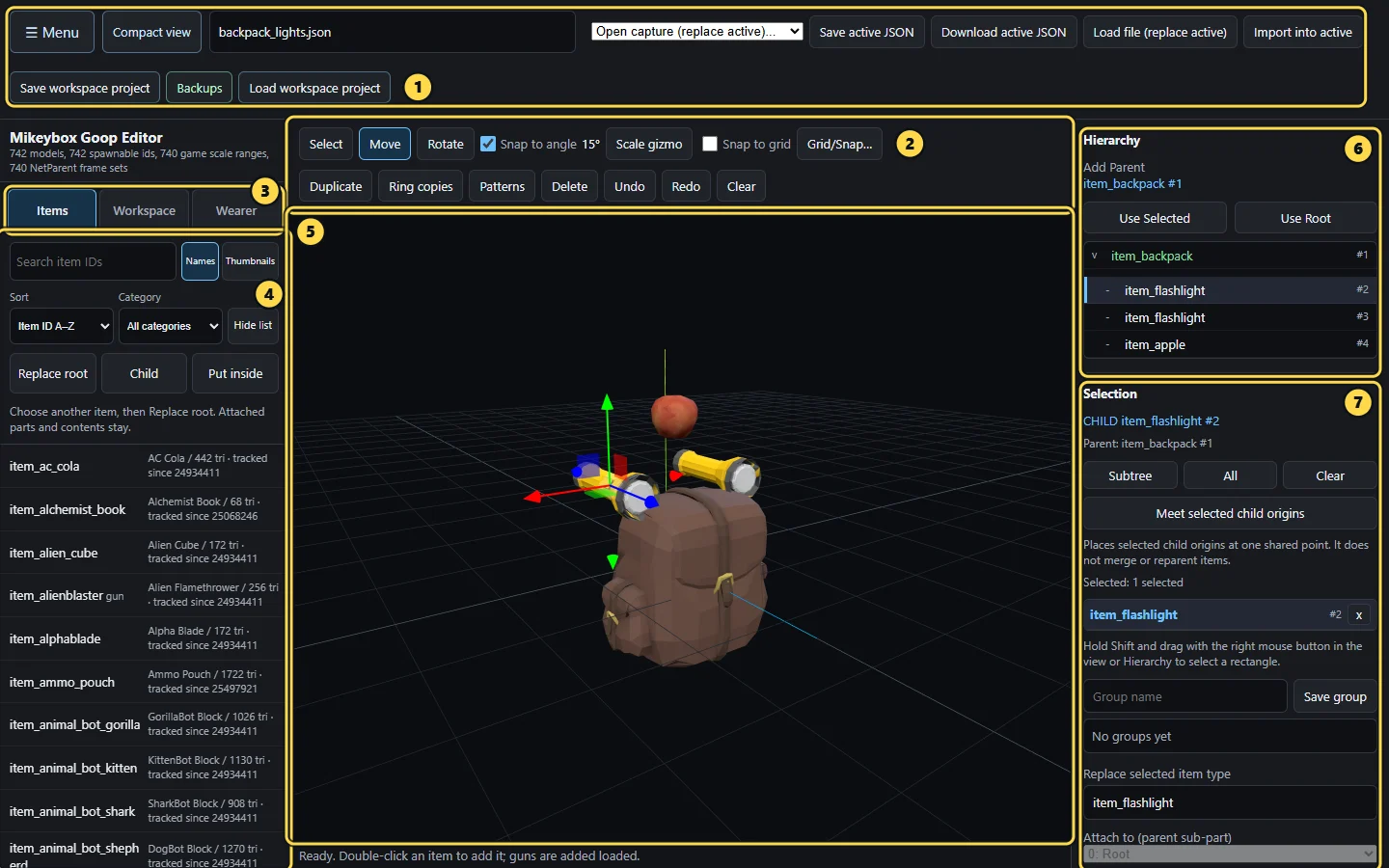
  3. Start an invention. Search the Items list, select an item and press Set root. That first item holds everything else. Pick another item and press Child to attach it to the root (the Hierarchy shows what is attached to what), then use Move and Rotate above the 3D view to place it.
  4. Learn the rest. Help & guide in the editor's top bar opens the full editor guide, with pictures of every tool.
The editor window with seven numbered areas: 1 file and workspace buttons, 2 scene tools, 3 sidebar tabs, 4 item catalog, 5 3D view, 6 Hierarchy, 7 Selection and Properties.
The editor: 1 file and workspace buttons, 2 scene tools, 3 sidebar tabs (Items, Workspace, Wearer), 4 item catalog, 5 3D view, 6 Hierarchy, 7 Selection and Properties.

On a Quest headset: the editor opens in Classic view, with the buttons wrapping to fit. Compact view moves the file and scene buttons under ☰ Menu; the browser remembers your choice.
Open the Workshop

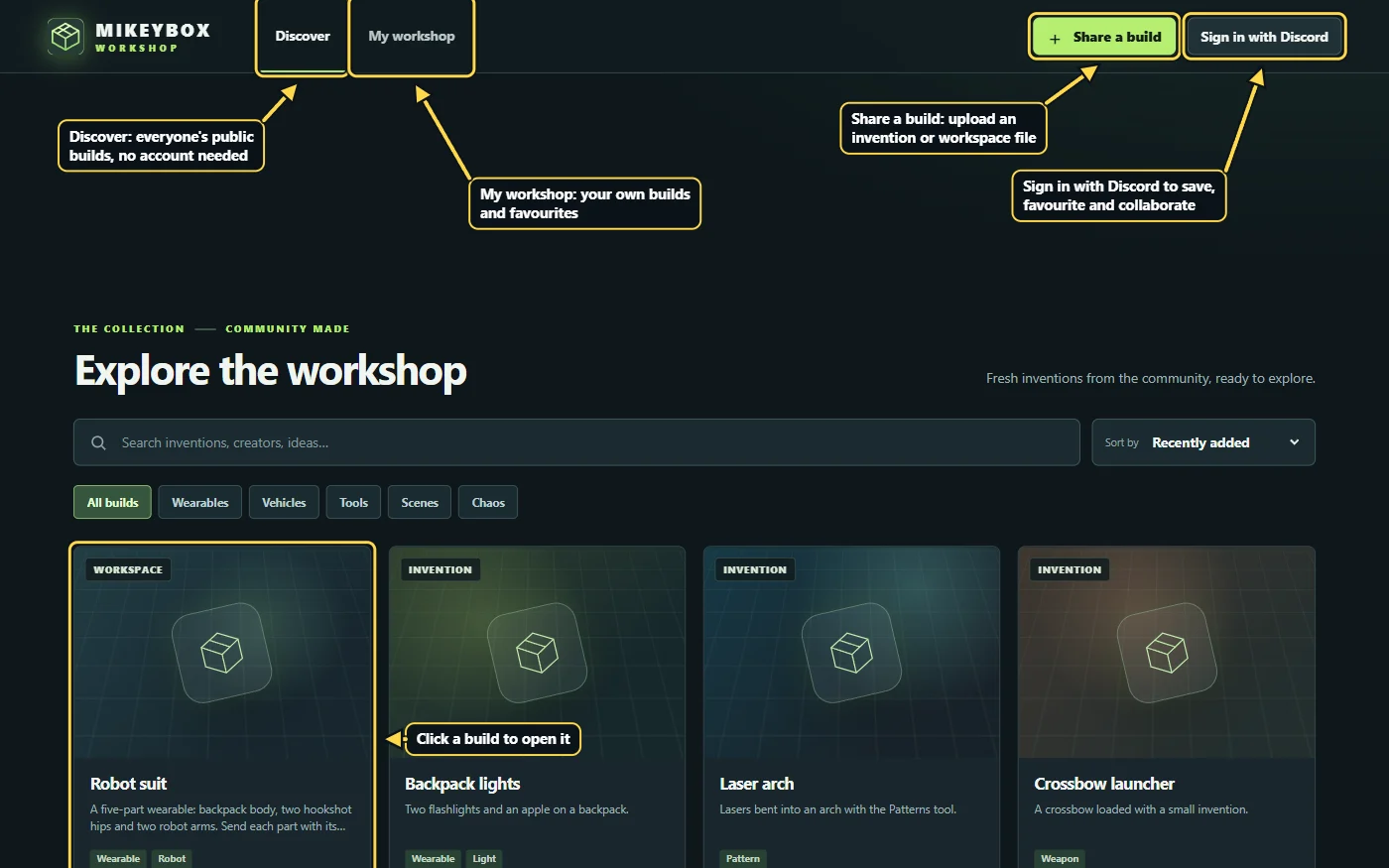
  1. Browse. Press Explore Workshop on the home page, or go to workshop.mikeybox.ai (fabshop.mikeybox.ai for Fabrication). Discover shows everyone's public builds. You can open, download and try them without an account.
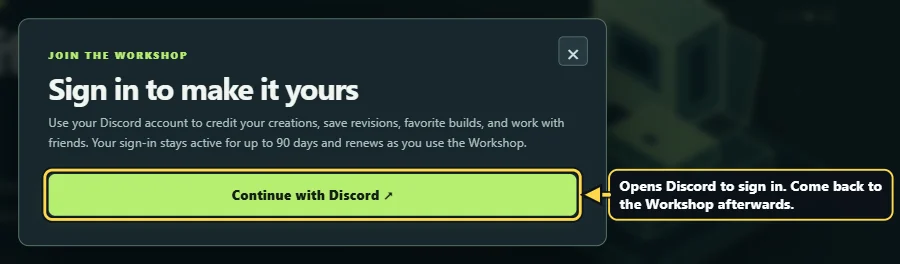
  2. Sign in. Press Sign in with Discord, then Continue with Discord. Signing in lets you save builds, favourite them, remix them and invite friends. You stay signed in for up to 90 days while you keep using it.
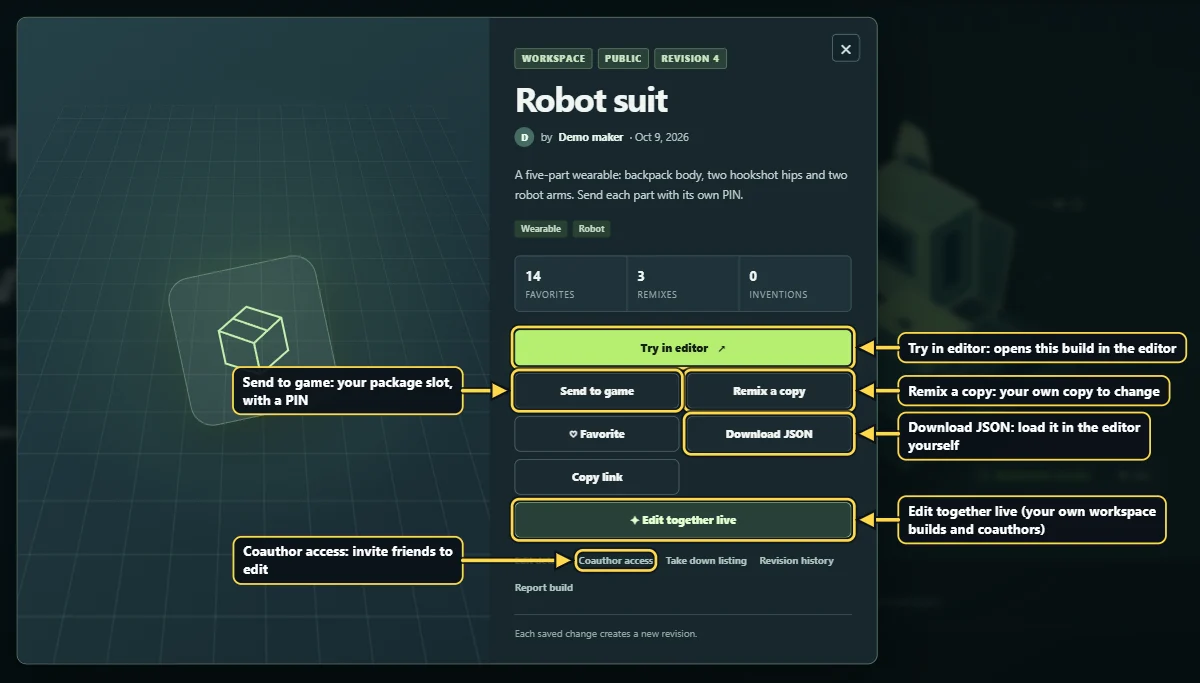
  3. Open a build. Click any build card. Try in editor opens it in the editor, Remix a copy makes your own copy to change, Send to game delivers one invention to your package slot, and Download JSON saves the file.
  4. Your own builds. My workshop lists them. On one of your builds you can Edit details, see the Revision history, give friends Coauthor access, and Edit together live on a workspace build.
  5. Share something you made. The easiest way is the Workshop button inside the editor, which saves straight from your workspace. On the Workshop site, Share a build uploads a file instead: an invention JSON (Download active JSON) or a workspace project (Save workspace project). New builds are Public unless you choose otherwise.
The Workshop: Discover shows everyone's public builds, My workshop shows yours, Share a build uploads one, Sign in with Discord signs in, and clicking a build card opens it.
The Workshop. (Example builds shown.)
Workshop sign-in: Continue with Discord. The Workshop keeps you signed in for up to 90 days.
Sign in with your Discord account.
An open Workshop build: Try in editor, Remix a copy, Send to game, Download JSON, and for your own workspace builds Edit together live and Coauthor access.
An open build and what you can do with it.

Workspaces: keep and share your work

A workspace is everything open in your editor tab: one or more separate inventions, such as a backpack body and two robot arms. One invention is active at a time; it is the one you add items to, save and send. Open the Workspace tab on the left to see them all, switch between them, add new ones or delete one.
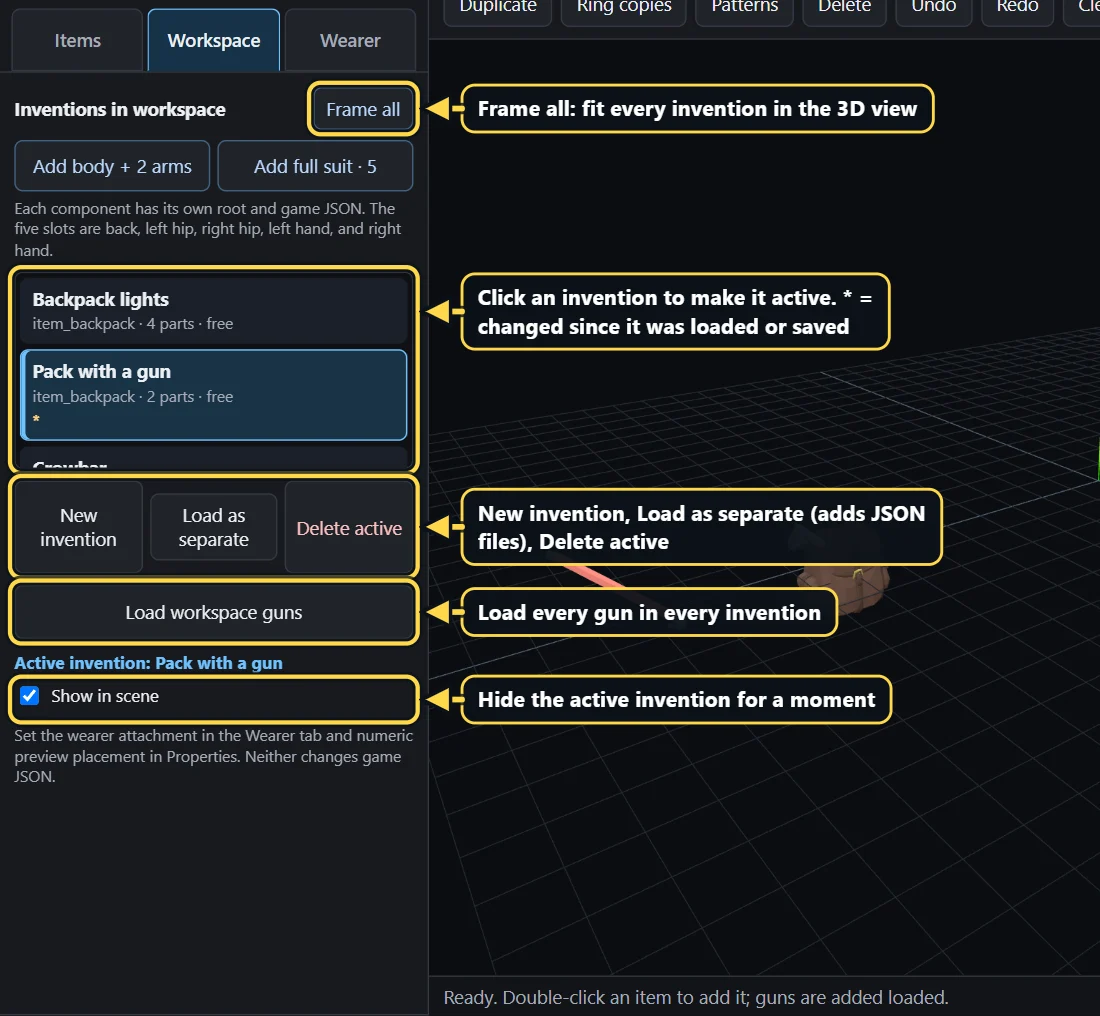
The Workspace tab with three inventions: the list shows each one's name, root item, part count and preview spot; the active one is highlighted and * marks unsaved changes. Below it: New invention, Load as separate, Delete active, Load workspace guns and Show in scene; Frame all sits above the list.
The editor's Workspace tab lists every invention in your workspace.

It lives in your tab

Reloading or closing the editor opens it empty. Your work is not lost: bring it back with Backups, a workspace project file, or the Workshop.

Backups

The editor saves snapshots in your browser by itself while you work. Press Backups and Restore to get one back. They stay on that browser and device only.

Workspace project file

Save workspace project downloads one file with every invention. Load workspace project opens it again, on any computer.

Online in the Workshop

The editor's Workshop button saves the whole workspace online with every revision. Invite friends as coauthors and edit it together live.

Prime ↔ Fabrication

In the editor's Workshop panel, send the workspace straight to the other editor, share a copy to the other site's Workshop, or link both Workshop accounts.

Into the game

The game spawns single inventions, so each invention in a workspace is sent on its own, with its own PIN.

Step-by-step instructions and pictures: Work with workspaces, Share and edit together in Workshop, and Share between Prime and Fabrication in the editor guide.

Get a build into the game

  1. Send it. In the editor, make the invention active and press Send, or press Send to game on a Workshop build. Enter your full Animal Company display name and a four-digit PIN made of the digits 1 to 4, for example 1234.
  2. Join the room. In Animal Company, join the room with code MIKEYBOX (FABRICATION for Fabrication builds).
  3. Ask for it. Say "Mikeybox, deliver my package, pin 1234" with your own PIN, or tap your four PIN digits on the drums of the Prime pad. On Fabrication, use the Fabrication pad.
  4. Grab it. Your build appears next to you. Pick it up once it appears: builds nobody is holding are cleaned up after a short while. Ask again for another copy.

A workspace with several inventions (a five-part suit, say) is sent one invention at a time, each with a different PIN.

Need help?

Ask in the Mikeybox Discord, read the full editor guide, or watch builds come together on YouTube.

Open the editor